

What you will make
Finished marketing images or videos of your own product, made from a template and kept on brand.
You need
- 1.A clear photo of your product, as PNG, JPEG or WebP
- 2.The product's name and a few lines on what it is and who it is for
- 3.Your website address or a short description of your business, for a brand kit
- 4.Credits for the images or videos you make
1. Save your product
Every run starts from a saved product: its photos, its name and its description. Save it once and reuse it for every image and video after that.
- Open Marketing Studio from the menu and press Add a product.
- Add up to 8 photos of the product, or paste one with Ctrl+V.
- Fill in Name and Description, then press Create product.
Tip: Ads only say what you write in the Description. Put in what the product is, who it is for and what makes it good, and leave out claims you cannot back up.
New product
Photos1/8
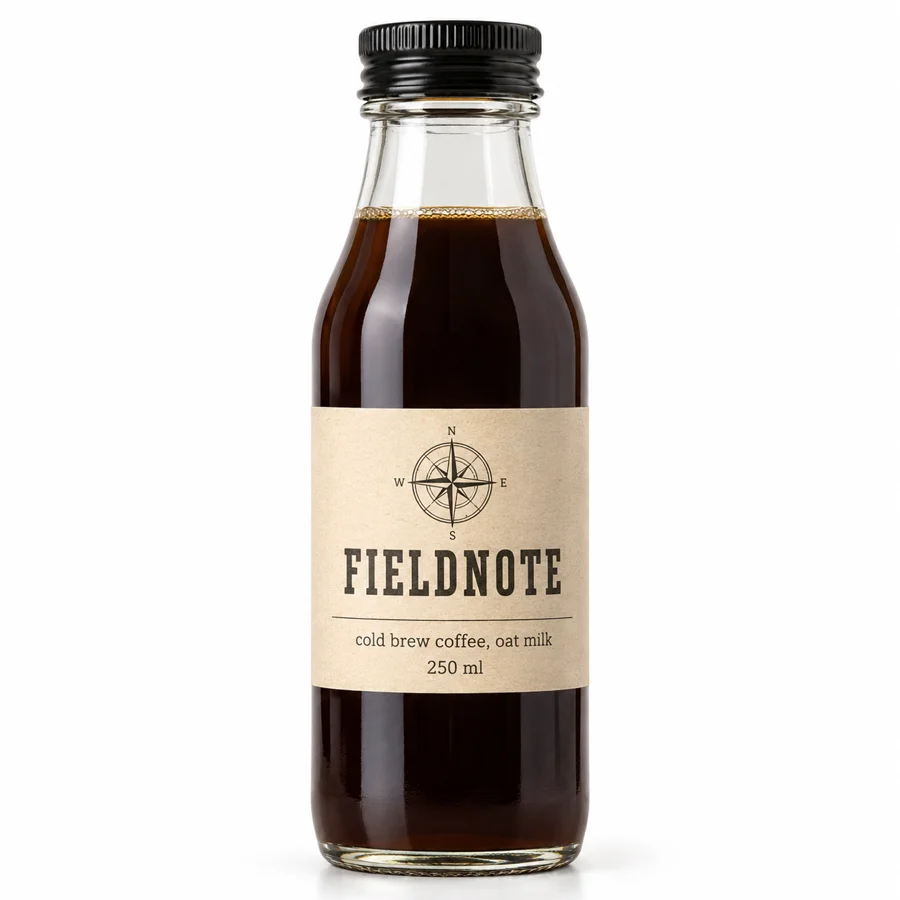
Name
Fieldnote Cold BrewDescription
Cold brew coffee with oat milk, steeped for 18 hours. Smooth and low in acidity, for people who want good coffee on the go.Create productProductFieldnote Cold BrewProducts
New productFieldnote Cold Brew2. Add a brand kit so every result looks like your brand
A brand kit holds your logo, colors, fonts, tagline, language and tone of voice, and Marketing Studio follows it on every run. It is optional: with None picked, runs follow the template only.
- Check every field in the review and fix anything that is off.
- Set Language to the language your ads should be written in.
- Press Save brand kit.
Press Brand kit, then New brand kit. Paste your website and press Build from website. Kubeez reads the site and pulls your name, logo, colors, fonts and voice from it. It usually takes 1 to 2 minutes.
Tip: You can keep up to 5 brand kits, one per brand or client. Your logo is added on the templates that put text on the image.
From your websiteCreate manuallyFieldnoteSmooth. Refreshing. Ready to go.Colors
HeadingsOswaldBodyInterTagline
Smooth. Refreshing. Ready to go.Language
EnglishTone of voice
CalmwarmhonestSave brand kitBrand kit
Fieldnote3. Choose a template
Press Choose a template. Each card shows what that template makes, on a sample product. Pick one and Marketing Studio makes the same kind of image or video with yours.
- Browse the shelves: Product shot, Ads, Posters, Marketplace, UGC videos and Product videos.
- Search styles by name when you know what you want, like Before and After or Size guide.
- Tap the heart on a card to keep it in Favorites, then tap the card to use it.
Tip: Video cards play their preview clip, so you can see the motion and the pacing before you pick one.
Search stylesAllProduct shotAdsPostersMarketplaceUGC videosProduct videos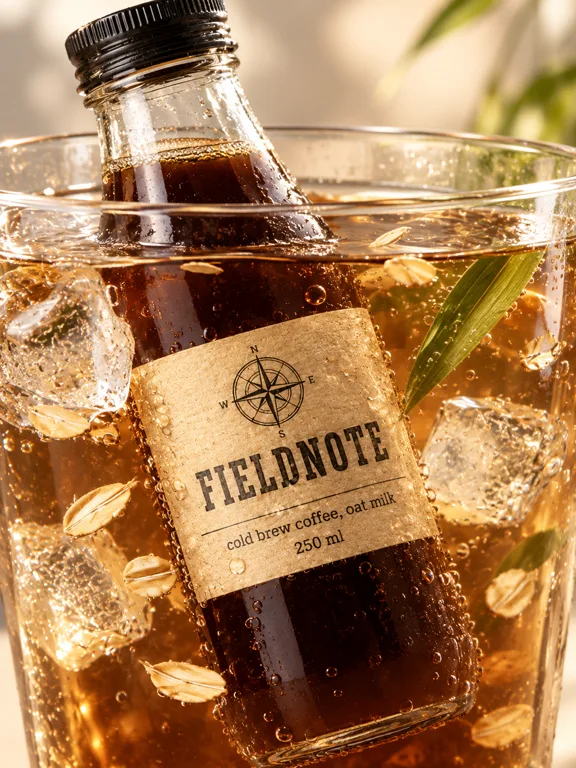
Drink Dive 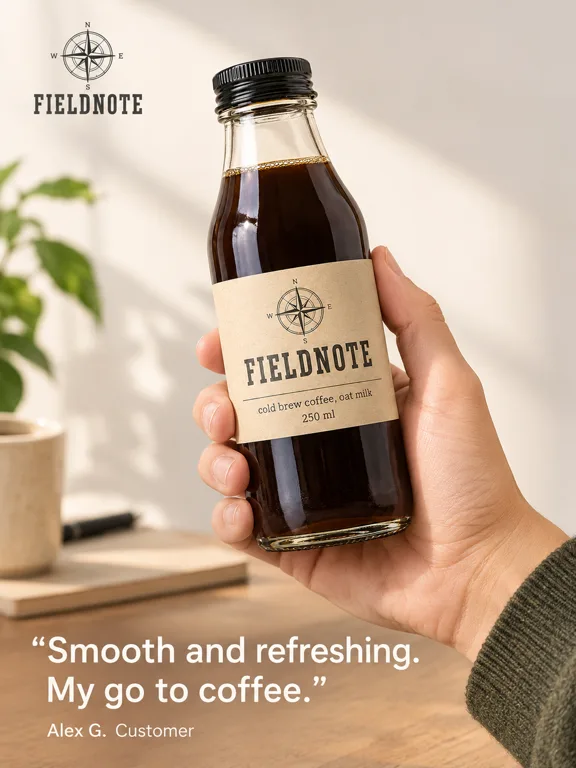
In-Hand Review Recreate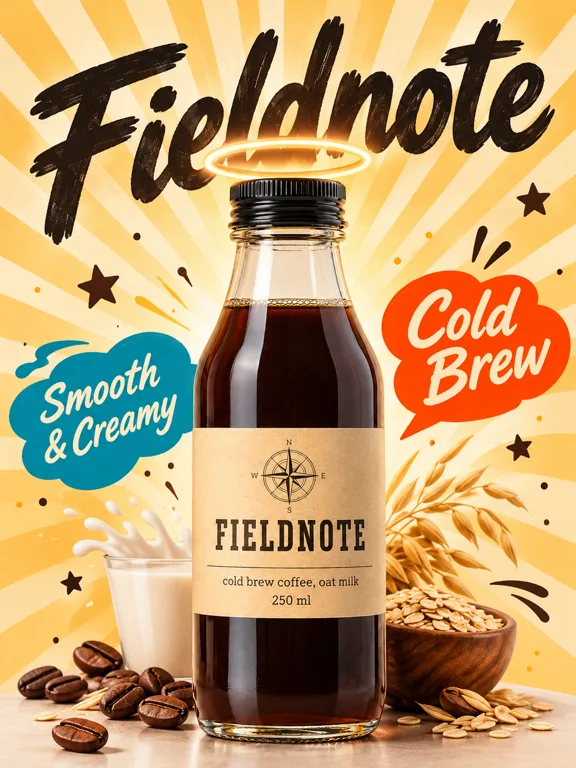
Halo Rays 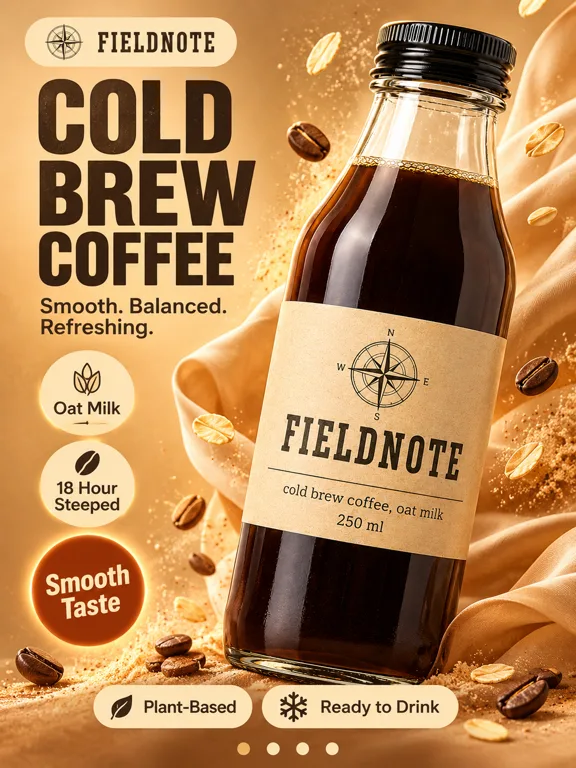
Badge Rush Video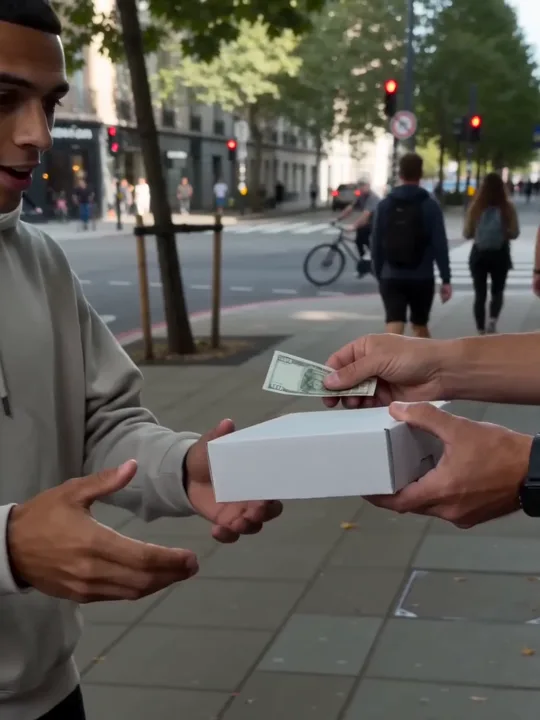
Street Parcel Video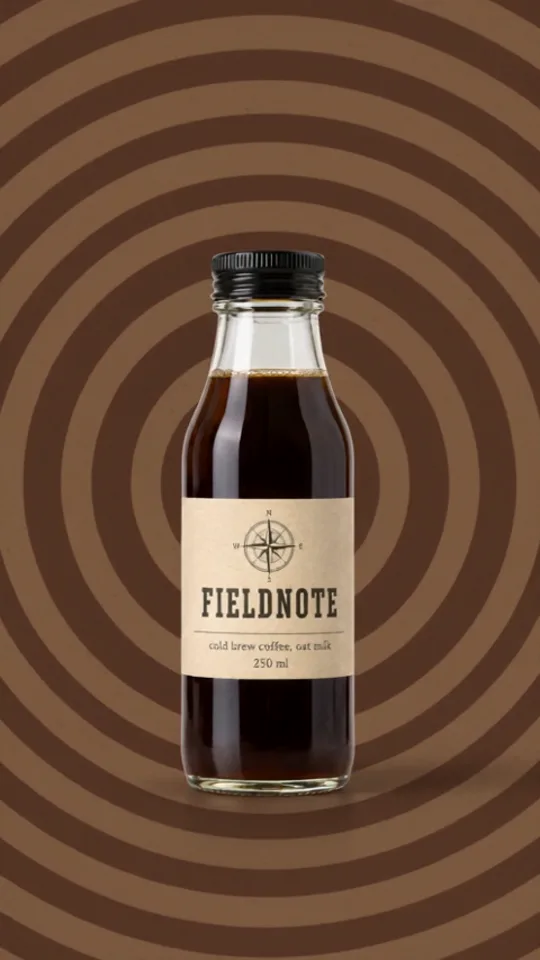
Backdrop Rapid Fire 4. Image or video: know what the template makes
Product shot, Ads, Posters and Marketplace templates make still images. UGC videos and Product videos make short clips with sound. The settings next to Brand kit change to match.
Product shots on clean or styled sets, ads with a headline, posters, and listing layouts such as Infographic, Size guide or In the box.
Tip: Text on images and spoken lines follow your brand kit's Language. Without a kit, they follow the language the app is set to.
Your photo ImageHalo RaysA still image Video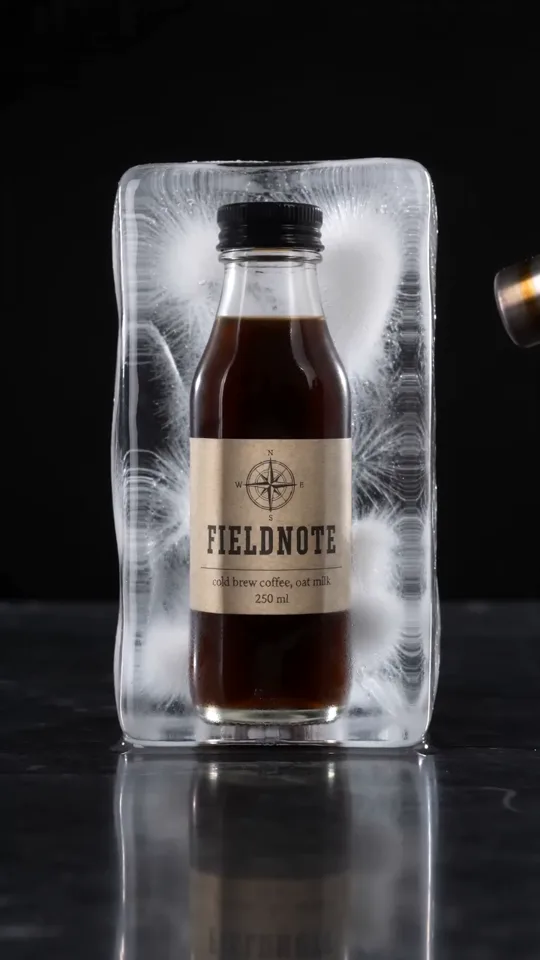
Thaw TestA clip with sound One photo in, all of this out
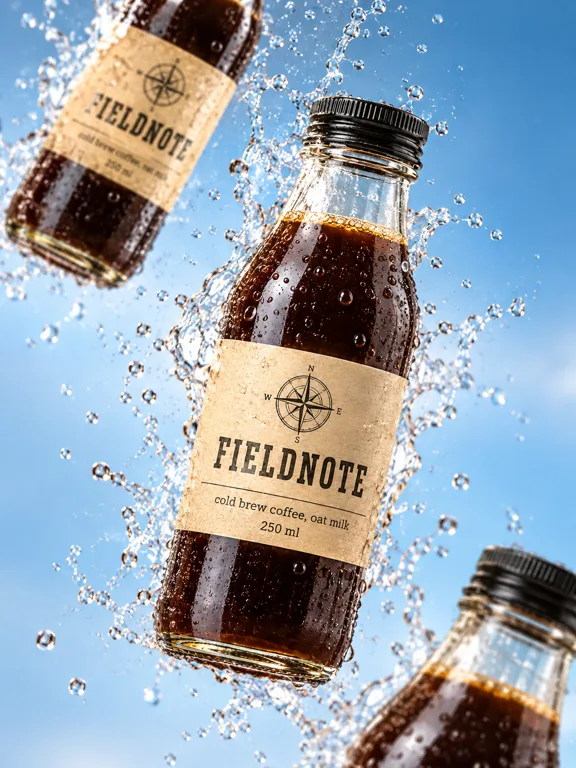
Droplet Fall 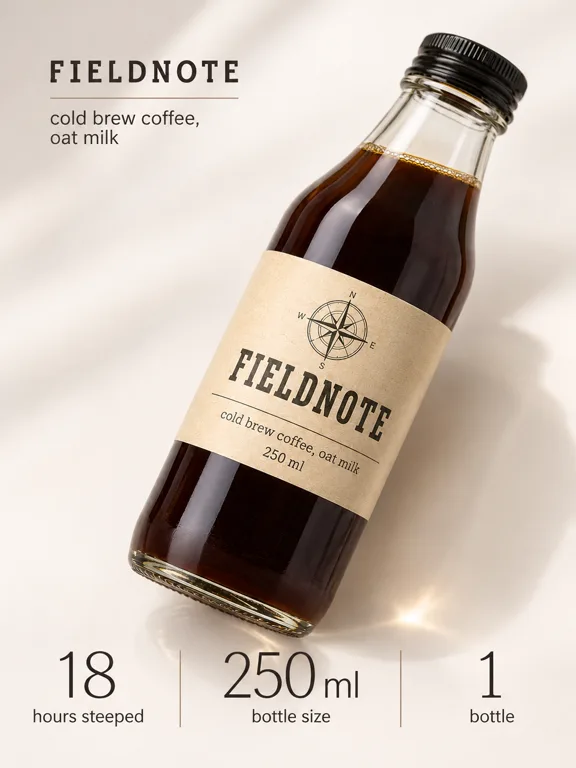
Number Trio 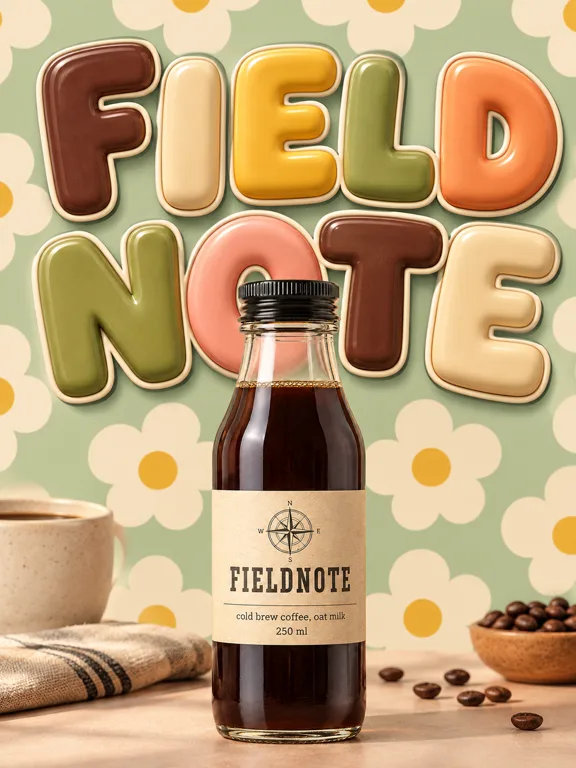
Bubble Bloom 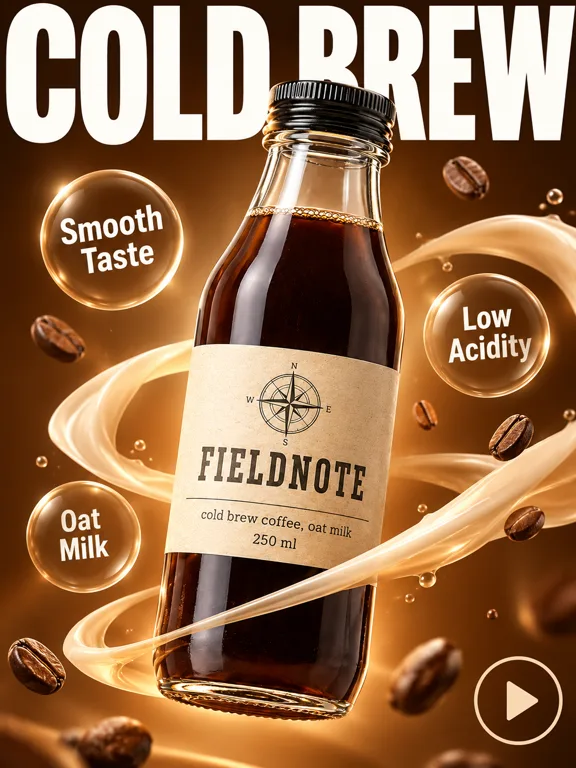
Glass Orbs 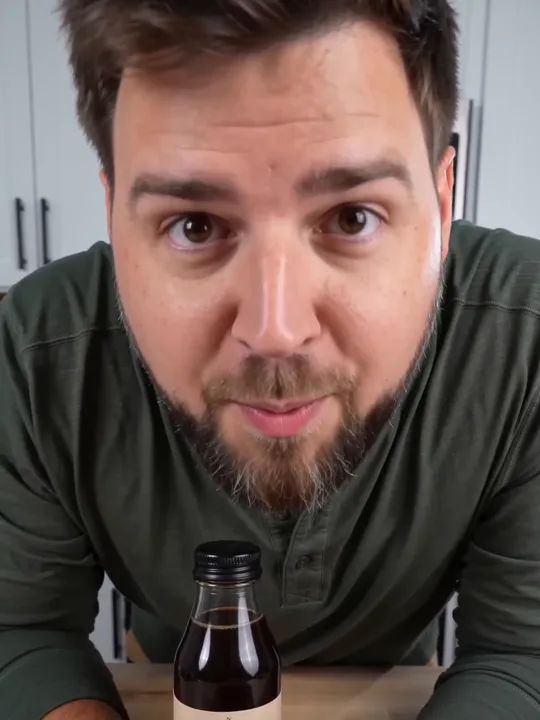
Whisper Trick 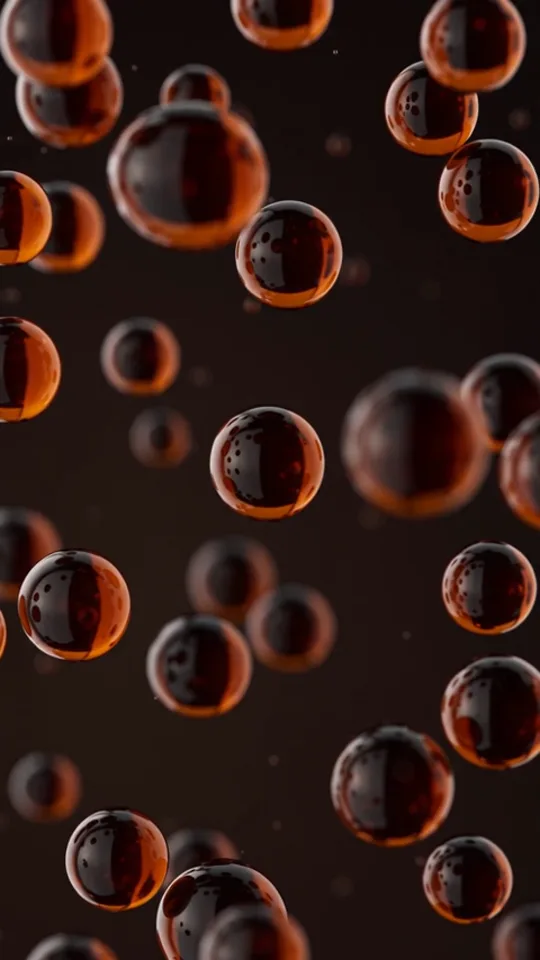
Essence Bloom 5. Set up an image run
An image run has three settings: the aspect ratio, the resolution and how many images to make. The Details box is optional.
- Pick the aspect ratio: 1:1, 3:4, 9:16, 4:3 or 16:9.
- Pick the resolution: 1K, 2K or 4K.
- Set how many images to make, 1 to 4, and add details if you want something in or out.
Tip: Each image in a batch is its own run of the same template, so 4 images give you 4 different takes to choose from.
Fieldnote3:42K4/4Add details, optionalAspect ratio
1:13:49:164:316:9Resolution
1K2K4KYour photoResult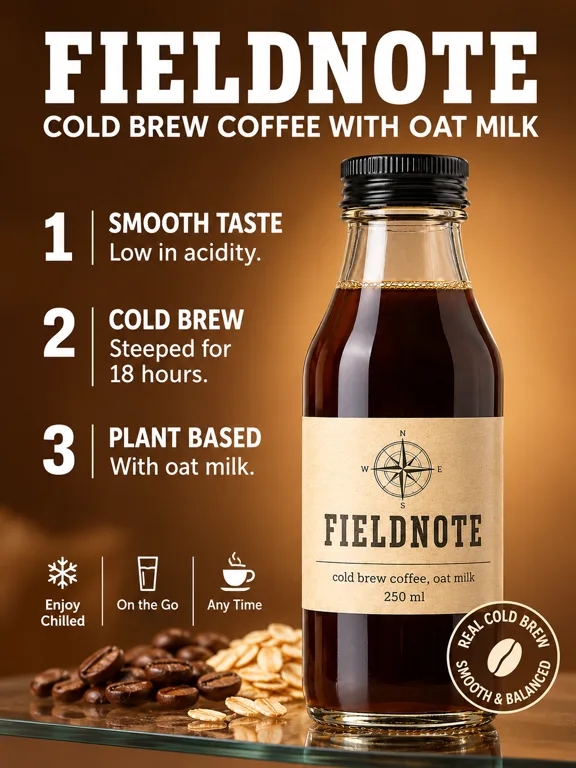
Numbered Shelf 6. Set up a video run: Quality or Economy, length, ratio and resolution
A video template brings its own settings. On the Model chip, Quality gives better visuals and costs more, and Economy is faster and cheaper at lower quality. Each option shows its cost.
- Choose Quality or Economy on the Model chip.
- Keep the template's own length, or pick any length from 4 to 15 seconds.
- Pick the aspect ratio, 480p or 720p, and how many videos to make, 1 to 4.
Tip: A template works best at its own length. If you change it, the length chip names the original and offers to put it back.
Fieldnote9:16Quality720p8s1/4Model
QualityBetter visuals, costs moreEconomyFaster and cheaper, lower qualityLength
4s8s · the template's length15sResolution
480p720pYour photoResult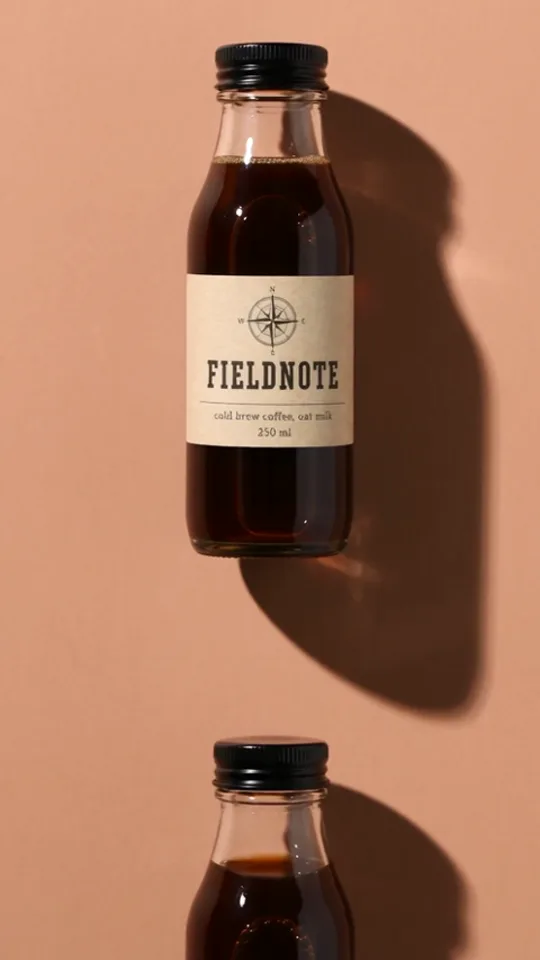
Shadow Wall Loop 7. Generate, then reuse what works
Check the cost on the Generate button and press it. Results appear in your results feed, each card named after its template.
- Open a result to see it full size, download it, or rate it with like or dislike.
- Press Use this template to run it again with another product or photo.
- Use the card menu to share a link, download or delete.
Tip: Make one image or one short video first to see how the template treats your product, then make more of the one you like.
Results
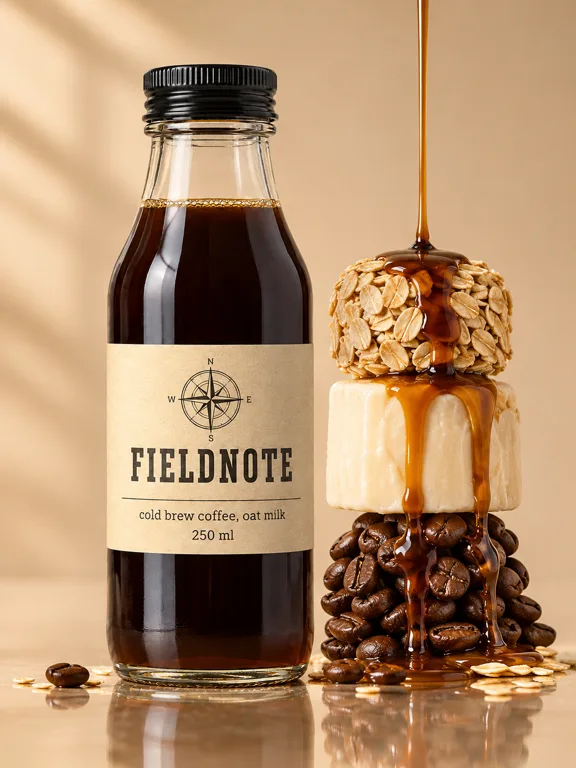
Drizzle Stack 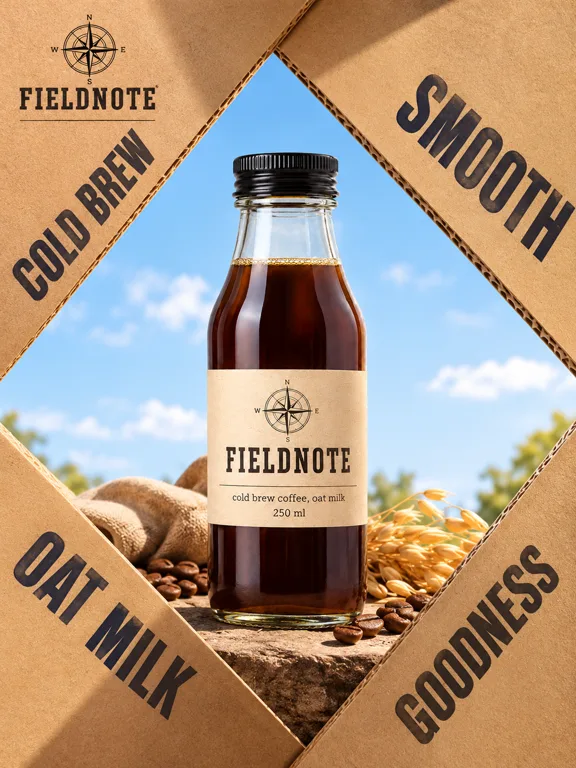
Cardboard Sky 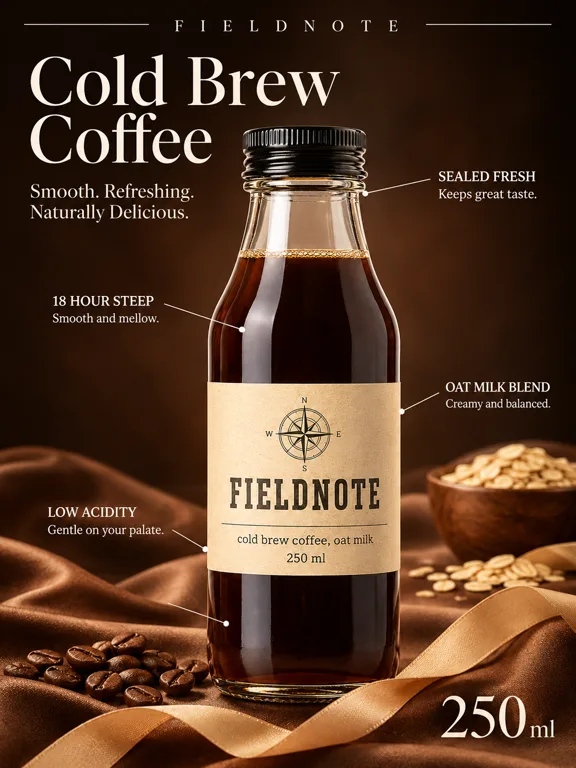
Silk Annotations 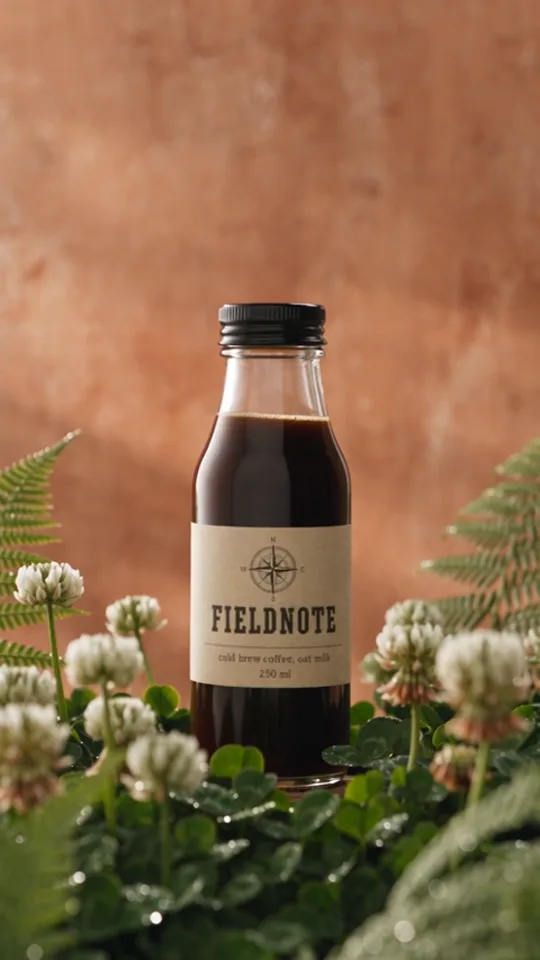
Meadow Hover LikeDislikeUse this template
Avoid these
- Leaving the Description vague and expecting the ad to know the product's selling points.
- Using a dark, cluttered or cropped product photo. The result can only show what the photo shows.
- Leaving the brand kit Language on the wrong language, so the copy comes out in it.
- Stretching a video template far from its own length and losing its pacing.
- Making 4 videos before checking how one template treats your product.
- Picking an image template when you need motion, or a video template when you need a still.
Marketing with Kubeez: questions
Open Marketing Studio, save your product with a photo, a name and a description, pick a template and press Generate. You get finished product shots, ads, posters, marketplace images or videos, with no prompt to write.
Yes. Each run uses one photo of your product and makes a new image of it in the template you pick, from clean studio shots to styled scenes.
Save the product, add a brand kit for your logo, colors and fonts, pick a template from the Ads or Posters shelf and generate. The ad only states what you wrote in the product description.
Yes. The UGC videos shelf holds creator style clips with sound, made from your product photo. Each template decides who is on screen, from hands only to a person talking to the camera.
From 4 to 15 seconds. Each video template starts at its own length, which is the length it works best at.
Quality gives better visuals and costs more. Economy is faster and cheaper, at lower quality. You choose between them on video templates, and each shows its cost before you generate.
Images and videos come in 1:1, 3:4, 9:16, 4:3 or 16:9. Images render at 1K, 2K or 4K, and videos at 480p or 720p.
A saved set of your brand's name, logo, colors, fonts, tagline, language and tone of voice. Kubeez builds it from your website or from a short description, and you can keep up to 5.
Yes. Set the Language in your brand kit and the text on your images is written in it. Without a kit, it follows the language the app is set to.
No. The template does that work. You can add optional details, such as a headline idea or something to leave out.
Your turn
Everything in this lesson is one click away. Open the tool and make your first version now.