Image-to-Video: Bring Still Photos to Life with AI Animation
Transform static images into dynamic videos with camera movements, motion control, and start/end frame techniques.
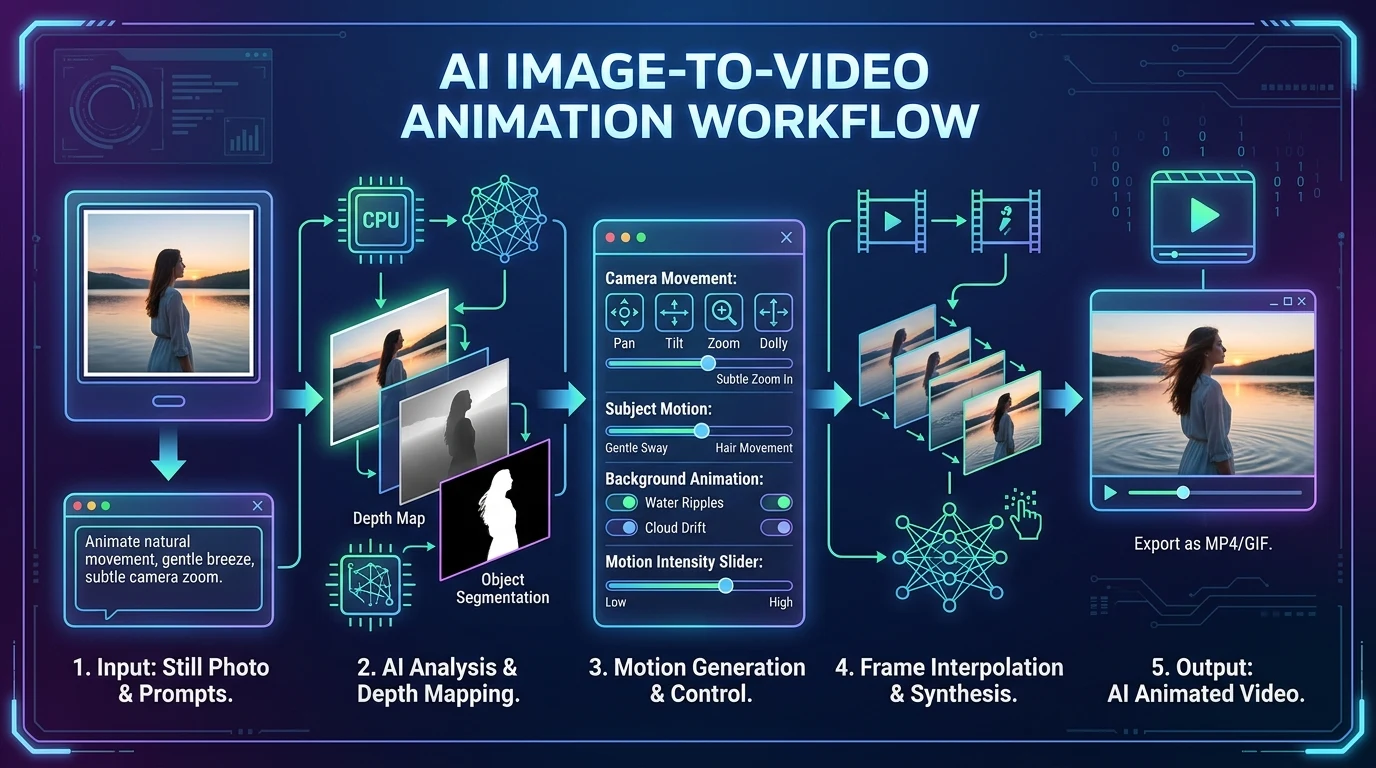
You have a great image—a product shot, a portrait, a landscape. Image-to-video AI animates it. Add camera movement, subtle motion, or full scene animation. The result: a dynamic video from a single still.
Kubeez supports image-to-video across Veo 3.1, Kling 2.6, Kling 2.5, Wan 2.5, Seedance, and more. Upload a reference image, write a prompt describing the motion, and generate.
#How Image-to-Video Works
You provide:
- Source image — The still to animate
- Motion prompt — What should move, how the camera moves, mood
The model generates a video that starts from your image and adds motion. Duration is typically 5–10 seconds depending on the model.
#Use Cases
Product videos: Animate product photography for ads and e-commerce. Rotate, zoom, or add subtle movement.
Portraits: Bring headshots to life—slight turn, blink, smile. Useful for intros and social content.
Landscapes: Add clouds moving, water flowing, leaves rustling. Cinematic B-roll from stills.
Art and illustrations: Animate digital art for music videos, social posts, or presentations.
Reference ads: Match the style of an existing ad and animate your product in the same aesthetic.
#Camera Movements
Static: Minimal motion; subtle changes in lighting or expression.
Push in / Pull out: Camera moves toward or away from the subject.
Pan / Tilt: Camera sweeps horizontally or vertically.
Orbit: Camera rotates around the subject (product shots).
Handheld: Slight shake for documentary or casual feel.
Aerial: Drone-style movement over a scene.
#Start and End Frames
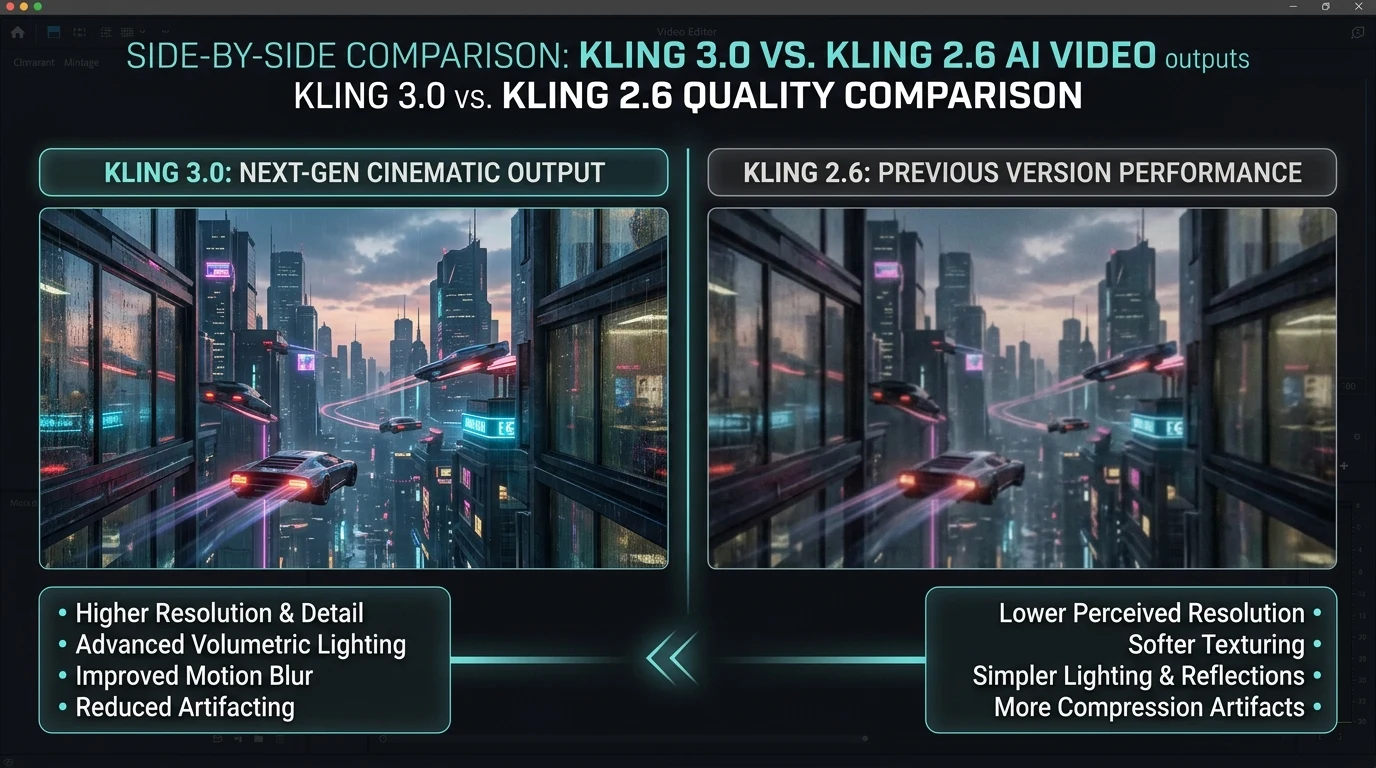
Some models (e.g., Kling 2.5 Image-to-Video Pro) let you specify both start and end frames. You provide two images, and the model generates the transition. Useful for:
- Morphing between product angles
- Scene transitions
- Before/after reveals
#Prompting for Image-to-Video
Describe the motion: "Camera slowly pushes in" or "subject turns to face camera."
Match the image: Don't contradict the source. If it's a portrait, don't ask for a full-body shot.
Add audio when supported: Kling 2.6 can generate dialogue or music with the video.
#Best Practices
- High-quality source: Garbage in, garbage out. Use sharp, well-lit images.
- Consistent style: If animating a series, keep source images stylistically consistent.
- Simple motion first: Start with basic camera moves; add complexity as needed.
Animate your images with Kubeez.
To pick a model, check the best image to video AI models in Kubeez School. To make your character move the way someone moves in a reference clip, follow the lesson Copy the movement from any video onto your character.
Dex writes the Kubeez guides and makes every example with the same tools you use.
See also
Try these tools
Keep reading
- 13 Product Photography Ideas You Can Make From One PhotoProduct photography ideas for small businesses: 13 product shot styles, from studio backdrops and flat lays to splashes and levitation, each with real examples.
- 12 Product Ad Ideas for Online Stores, With Real ExamplesProduct ad ideas for online stores: 12 static ad formats, from comparison and before and after to launch posters, each shown with a real example you can reuse.
- Turn One Product Photo Into a Full Marketing Asset PackTurn one product photo into a full marketing asset pack: product shots, ads, posters, marketplace images, UGC videos and product videos, with no photoshoot.
- 10 Product Video Ideas You Can Make From One Photo10 product video ideas, from backdrop swaps to macro pours and storybook pages, each made from one product photo with a real Kubeez Marketing Studio template.